framemodu
Quickguide
framemodu works inside Lightroom Classic Export. Add the export filter, choose a template and ratio, review metadata display, then export finished files without changing your catalog or originals.
Open the Export dialog
Select one or more photos in Lightroom Classic, then choose File > Export. Lightroom's native export settings still control file format, destination, base quality, sharpening, and resizing. framemodu appears as a post-process step that formats the files after Lightroom renders them.
- Use JPEG for the first test export unless your workflow requires another format.
- Choose a destination folder where the framed output is easy to inspect.
- Use the same export preset across a batch when you want consistent presentation.
Add or verify framemodu
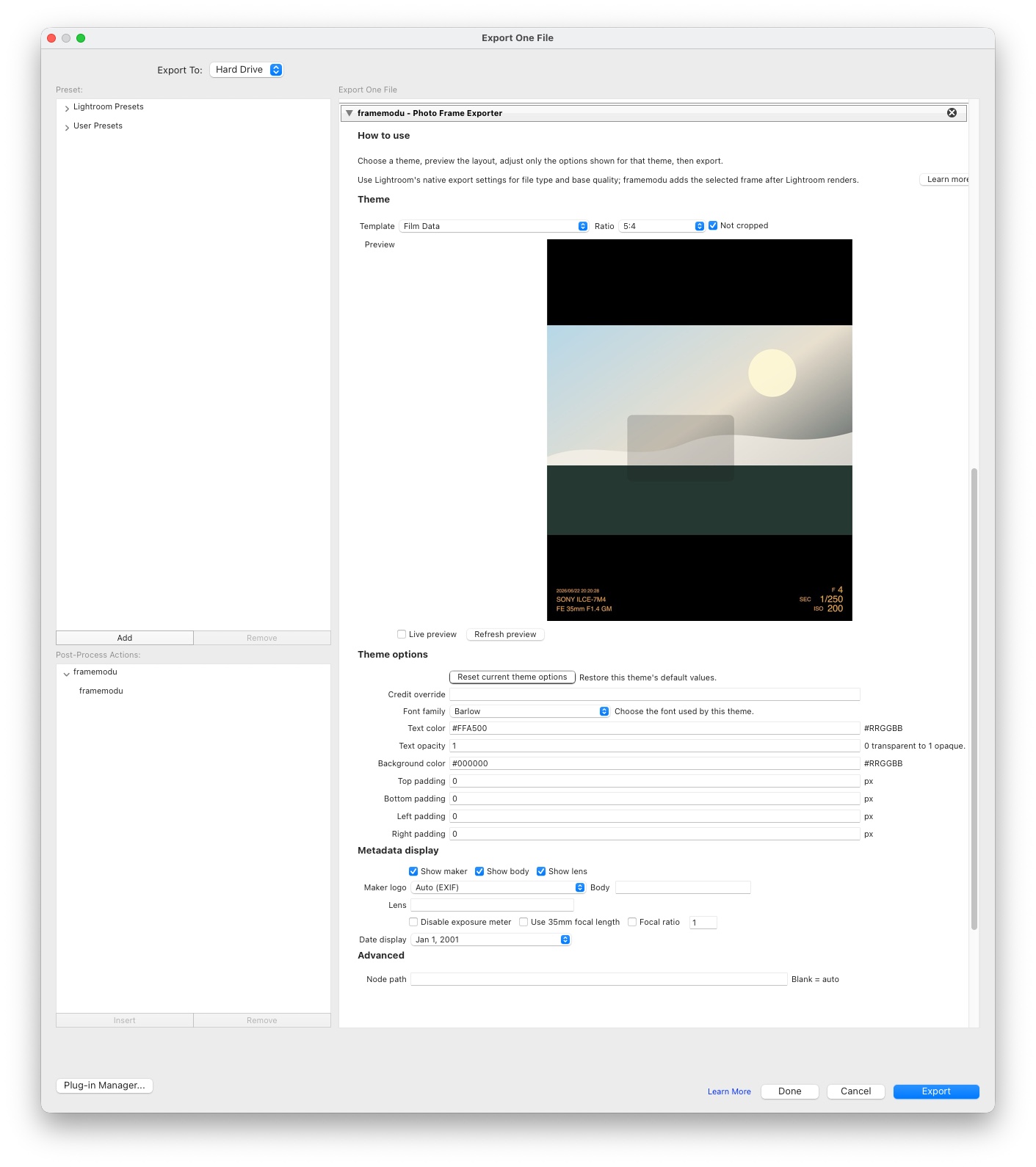
In the Post-Process Actions area, framemodu should appear as an active action. If it is not already listed, select framemodu from the available actions and click Insert. Once active, its settings panel appears on the right side of the Export dialog.
- Only add framemodu once for a normal export preset.
- Remove stale duplicate actions before saving a preset.
- If framemodu is missing here, return to Plug-in Manager and confirm the plug-in is enabled.
Choose template and ratio
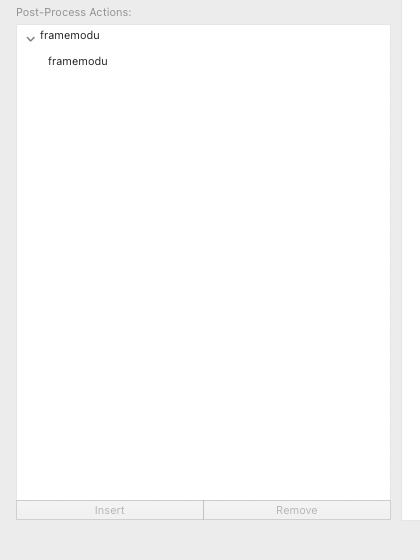
The Template menu chooses the visual frame treatment. The Ratio menu chooses the final canvas shape, such as the original ratio, square, vertical social output, or wide web output. The preview area updates from the selected template so you can check the layout before exporting.
- Use Not cropped when you want the full photo preserved inside the selected canvas.
- Use Live preview only when you need immediate feedback; Refresh preview is lighter for slower machines.
- Pick the template first, then adjust only the options shown for that template.
Tune theme and metadata display
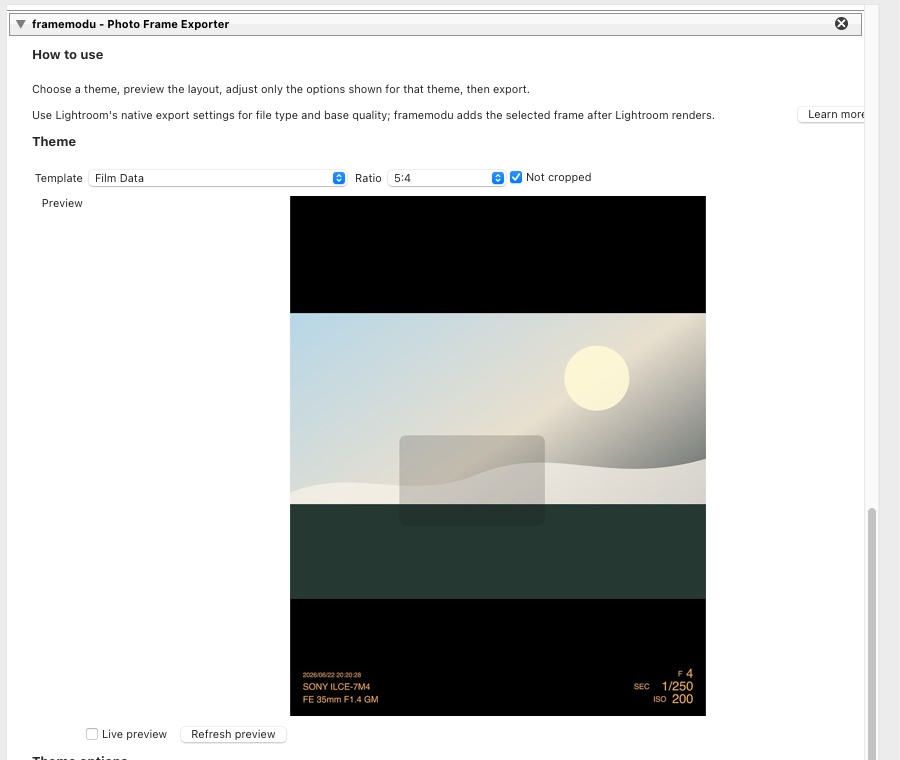
Theme options expose the typography, colors, padding, and other controls that apply to the selected template. Metadata display controls let you show or hide maker, camera body, lens, exposure details, date, and override fields when Lightroom metadata needs a correction.
- Use Auto for maker/logo data when EXIF is clean.
- Use override fields when a camera, lens, or brand label needs a manual correction.
- Keep text opacity, padding, and colors consistent before exporting a whole set.
Export finished files
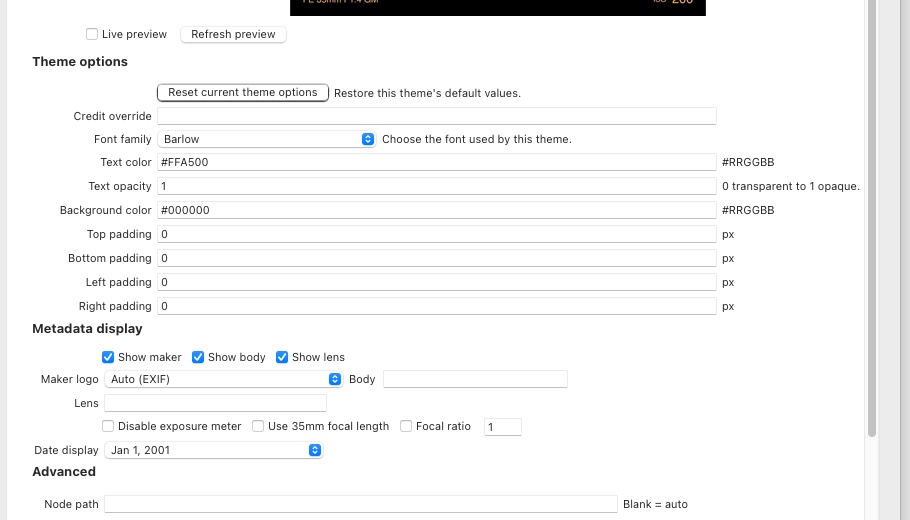
Click Export after the preview and metadata look correct. Lightroom writes new exported files to the selected destination, and framemodu formats those exported files only. Your Lightroom catalog edits and source photos remain unchanged.
- Open the output file before sharing or delivering the batch.
- If metadata is missing, check the source photo metadata and try the metadata override fields.
- If the final frame is correct, save the setup as an export preset for future batches.
Related topics
- Lightroom export guide
- photo frame workflow
- EXIF caption workflow
- Lightroom Post-Process Actions