macOS Apple Silicon
For Apple Silicon Macs with M-series chips.
framemodu-macos-arm64-v0.1.84.pkg - 94.8 MB
Framemodu
Download the current Framemodu installer for macOS or Windows, confirm it in Lightroom Classic Plug-in Manager, try the default Info Strip export, then activate Full Mode with a purchase email and license key.
Choose the installer that matches the Lightroom Classic computer. The auto download button may choose the current browser platform, and the direct links below expose every available package.
For Apple Silicon Macs with M-series chips.
framemodu-macos-arm64-v0.1.84.pkg - 94.8 MB
For Intel-based Macs.
framemodu-macos-x64-v0.1.84.pkg - 97.7 MB
For Windows 10 or later on 64-bit PCs.
framemodu-windows-x64-v0.1.84.msi - 96.0 MB
Use the auto download button for the current computer, or choose a specific installer from the visible platform buttons: macOS Apple Silicon, macOS Intel, or Windows x64.
The same package runs in Trial Mode until it is activated. Trial exports are limited to the default Info Strip template, with no watermark, so you can verify the Lightroom Classic export workflow before purchase.
Personal is currently $4.99 plus tax during the launch offer, reduced from $14.99, and covers two devices. Pro is $24.99 plus tax and covers five devices. Both unlock the full template set, ratio presets, logo modes, metadata controls, and theme options.
The Lightroom Classic export filter includes frame templates, ratio presets, EXIF field controls, brand logo modes, localized UI, a bundled Node runtime, and platform-specific native renderer dependencies. The installer places these resources together as one framemodu.lrplugin folder so Lightroom can load both the Lua plug-in and the renderer.
Run the downloaded .pkg on macOS or .msi on Windows. The installer copies Framemodu into the standard Lightroom Classic Modules location. After installation, open Lightroom Classic Plug-in Manager and confirm that Framemodu appears in the installed plug-ins list before opening Export.
The current Windows x64 installer is an unsigned MSI because Framemodu does not yet have a Windows Authenticode certificate. Windows may show SmartScreen or unknown-publisher prompts; this does not mean customers need Node.js, npm, Homebrew, or Sharp setup.
After purchase, enter the purchase email and license key in Plug-in Manager. A successful activation switches the plug-in to Full Mode. The plug-in validates periodically and keeps working during a short grace period if the server cannot be reached.
You need Lightroom Classic, permission to install software for the current user, and enough disk space for framed export files. The official installers include the rendering runtime, so customers should not need Homebrew, Node.js, npm install, or Sharp setup.
Framemodu runs after Lightroom Classic finishes its normal export. Lightroom still controls source selection, file type, base image quality, sharpening, destination folder, and image sizing. Framemodu then formats the exported copy with the selected frame, caption, logo, and canvas ratio. This keeps the source photo and Lightroom catalog edits unchanged.
Run one JPEG export before processing a complete set. The first test should confirm the selected template, canvas ratio, metadata text, logo mode, output size, and destination folder. If the test looks correct, save the Lightroom export settings as a preset for repeatable batches.
Run the current installer for the same platform. If Plug-in Manager shows duplicate or stale Framemodu entries, remove the old entry and keep the newly installed package active. Then open Export and run another single-photo test before using the updated package on a full client set.
Separate Lightroom export settings from Framemodu rendering settings. Export one plain Lightroom JPEG to confirm the base file is correct, then add Framemodu and export the same photo with a simple template. This comparison helps identify whether the issue is file output, renderer readiness, metadata, logo selection, or frame layout.
Keep the downloaded installer, purchase or fulfillment email, license key, and the version number shown in the plug-in information panel. These records make future reinstallations, support requests, device replacement, and update checks easier to confirm.
Contact support if the installer does not complete, the package does not load, the renderer status is missing, the Export dialog does not show Framemodu, or a test export produces an unexpected frame, ratio, logo, or metadata result. Include the smallest repeatable example rather than a full production batch.
Email [email protected] with your Lightroom Classic version, operating system, selected template, output ratio, logo mode, and a screenshot of Plug-in Manager if installation does not complete. For export output issues, include one screenshot of the Export dialog and one description of the expected result.
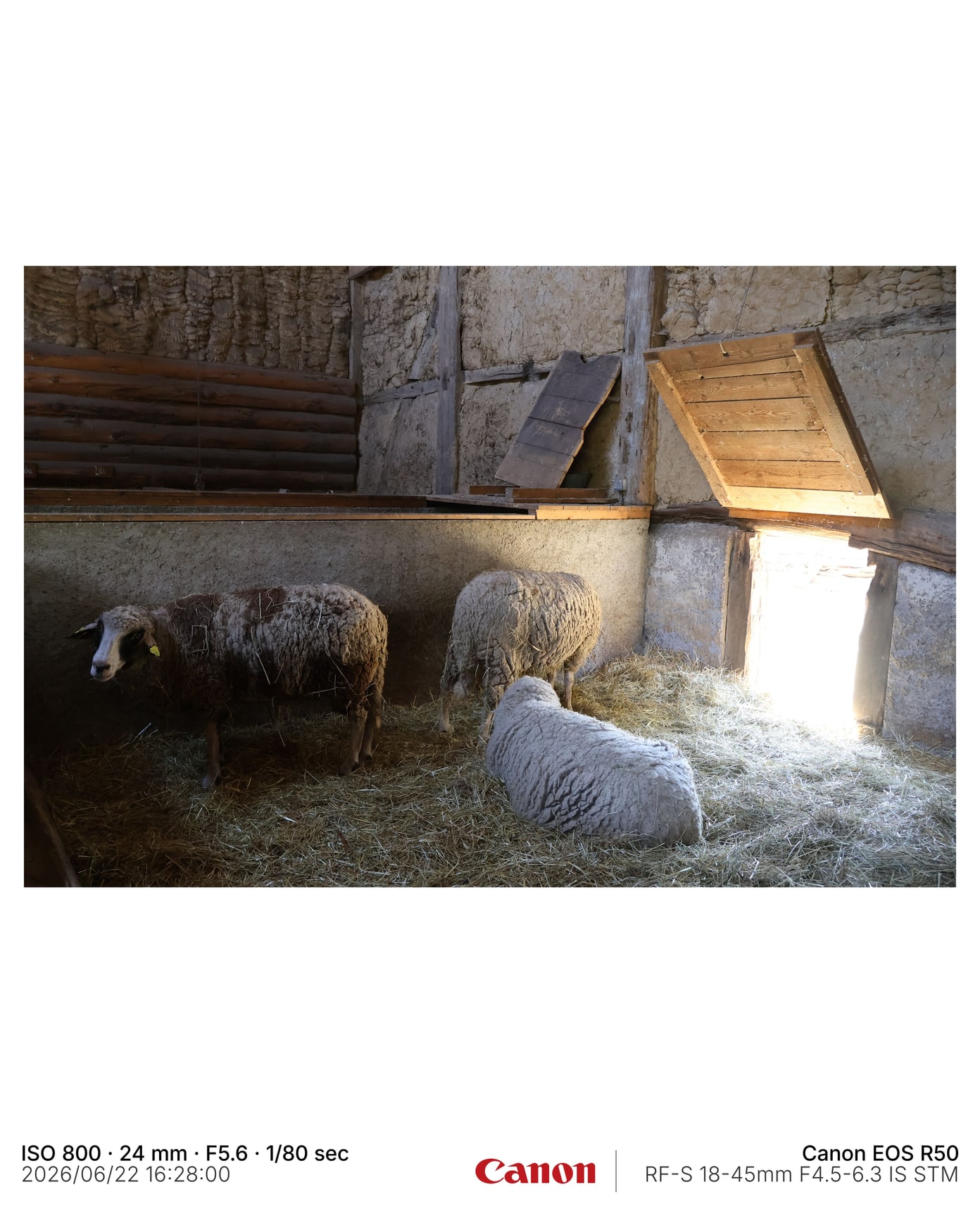
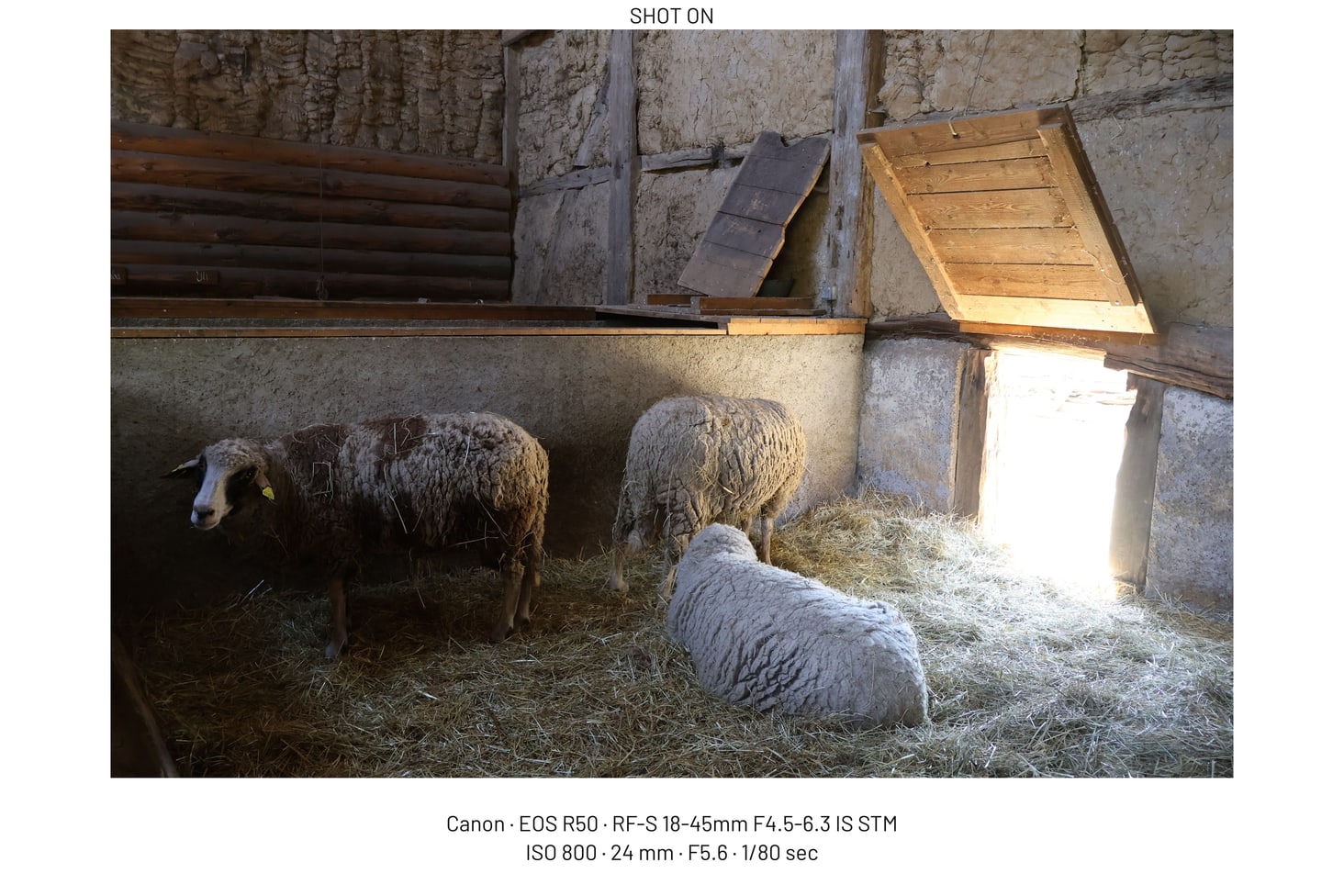
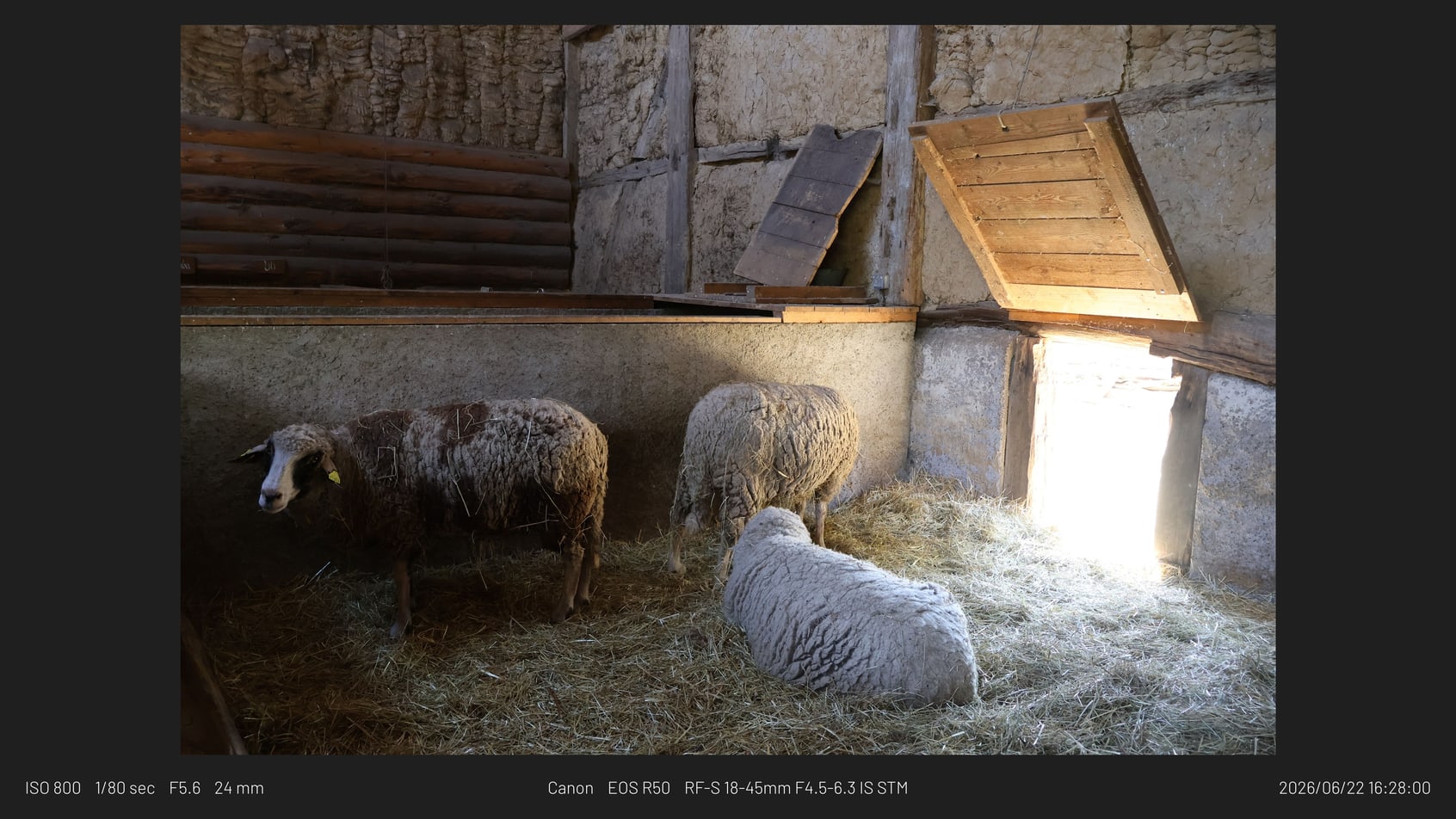
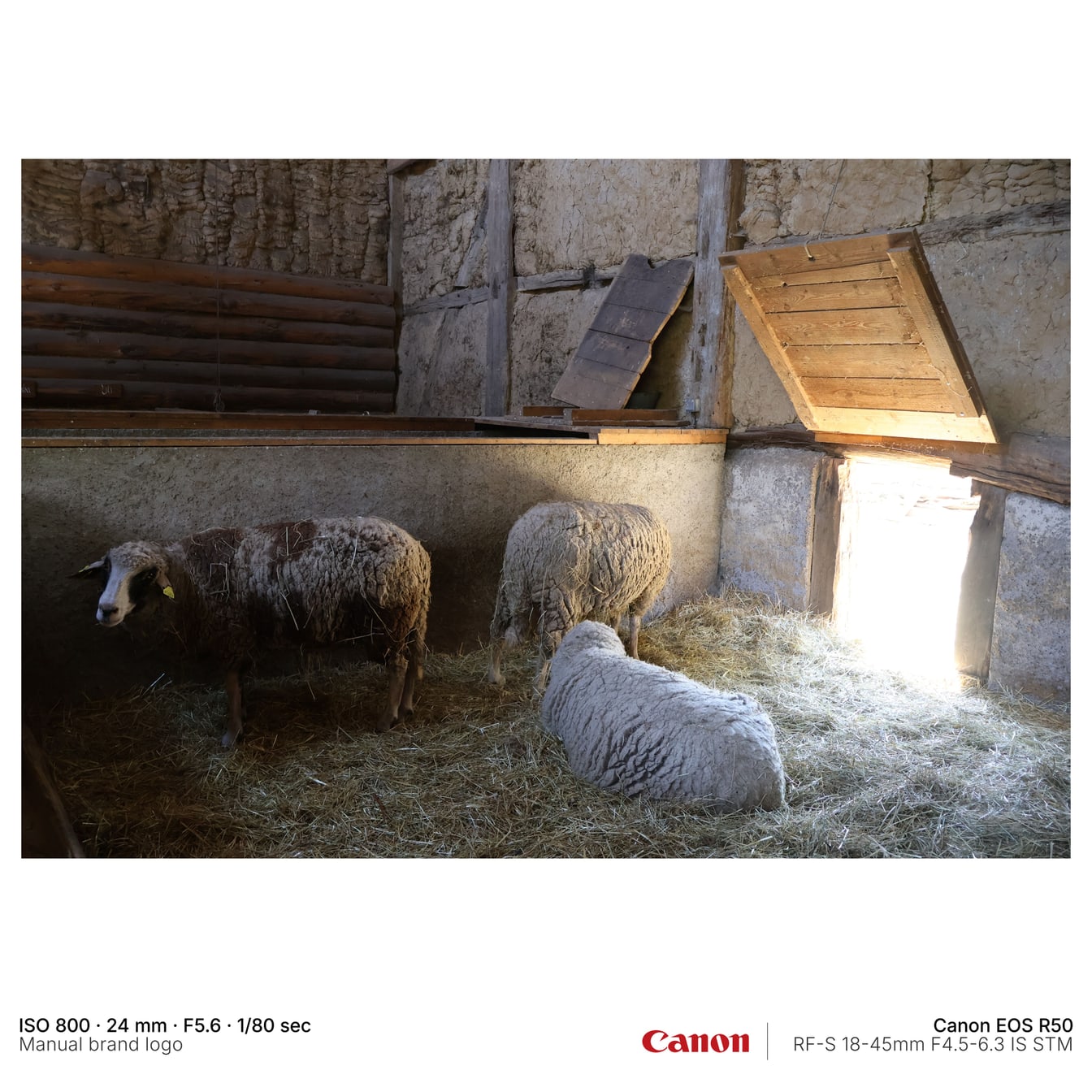
Download static JPG examples to inspect frame density, caption placement, ratio, and logo treatment before testing your own Lightroom export.
A 4:5 framed export with visible EXIF text and brand mark placement.
A clean captioned output for camera and lens detail inspection.
A wide metadata-bar export for website and article use.
A square export using manual brand logo selection.
Yes. Download the sample JPGs on this page to inspect frame density, caption placement, logo treatment, and ratios before running your own Lightroom test.
Yes. The same current installer package runs in Trial Mode until a Personal or Pro license is activated.
No. They are static examples. Your own export metadata appears only when you process your own files in Lightroom Classic.