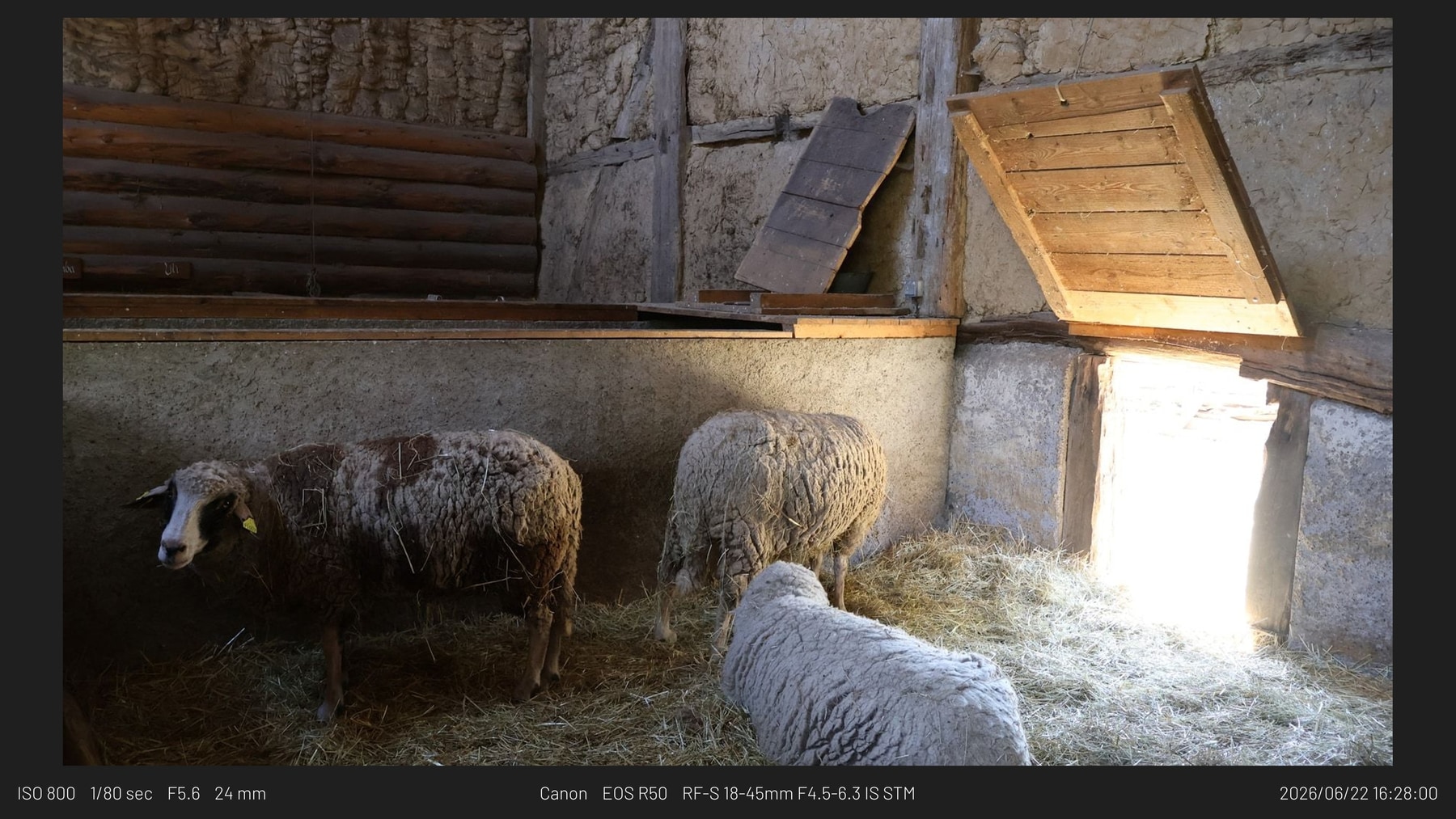
Framed 16:9 export sample
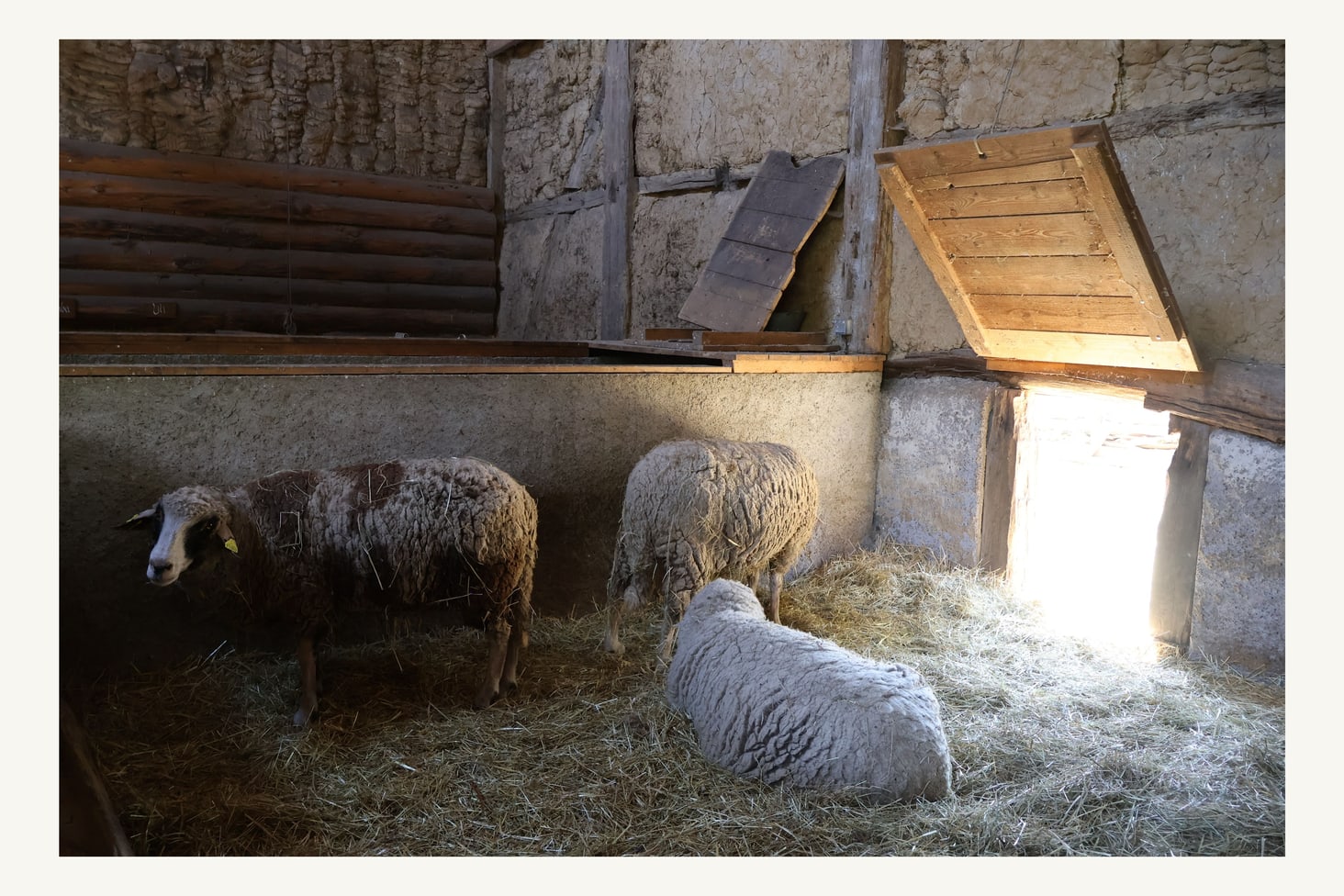
Finished file with a white presentation frame and metadata treatment.
Framemodu
Add finished borders to Lightroom Classic exports with a focused export filter instead of rebuilding layouts in Photoshop, Canva, or another finishing app.
Use this workflow when the photo edit is done and the remaining task is presentation: a clean border, consistent margin, optional EXIF caption, camera mark, and an output ratio that matches the destination.
A Lightroom Classic export filter keeps the presentation step beside file naming, destination, image sizing, and format settings. One preset can carry both the normal Lightroom export settings and the Framemodu border treatment.
Download the free trial, add Framemodu in Plug-in Manager, export one representative JPEG with the default Info Strip, and compare it with your usual plain export. Check border density, caption readability, and final dimensions before running a batch.
Use Photoshop, Canva, or a page-layout tool when the job needs composite graphics, marketing copy, multi-image layouts, retouching, or one-off art direction. Framemodu is for repeat photo export presentation.
Download static JPG examples to inspect frame density, caption placement, ratio, and logo treatment before testing your own Lightroom export.
Finished file with a white presentation frame and metadata treatment.
Minimal output when the frame should stay quiet.
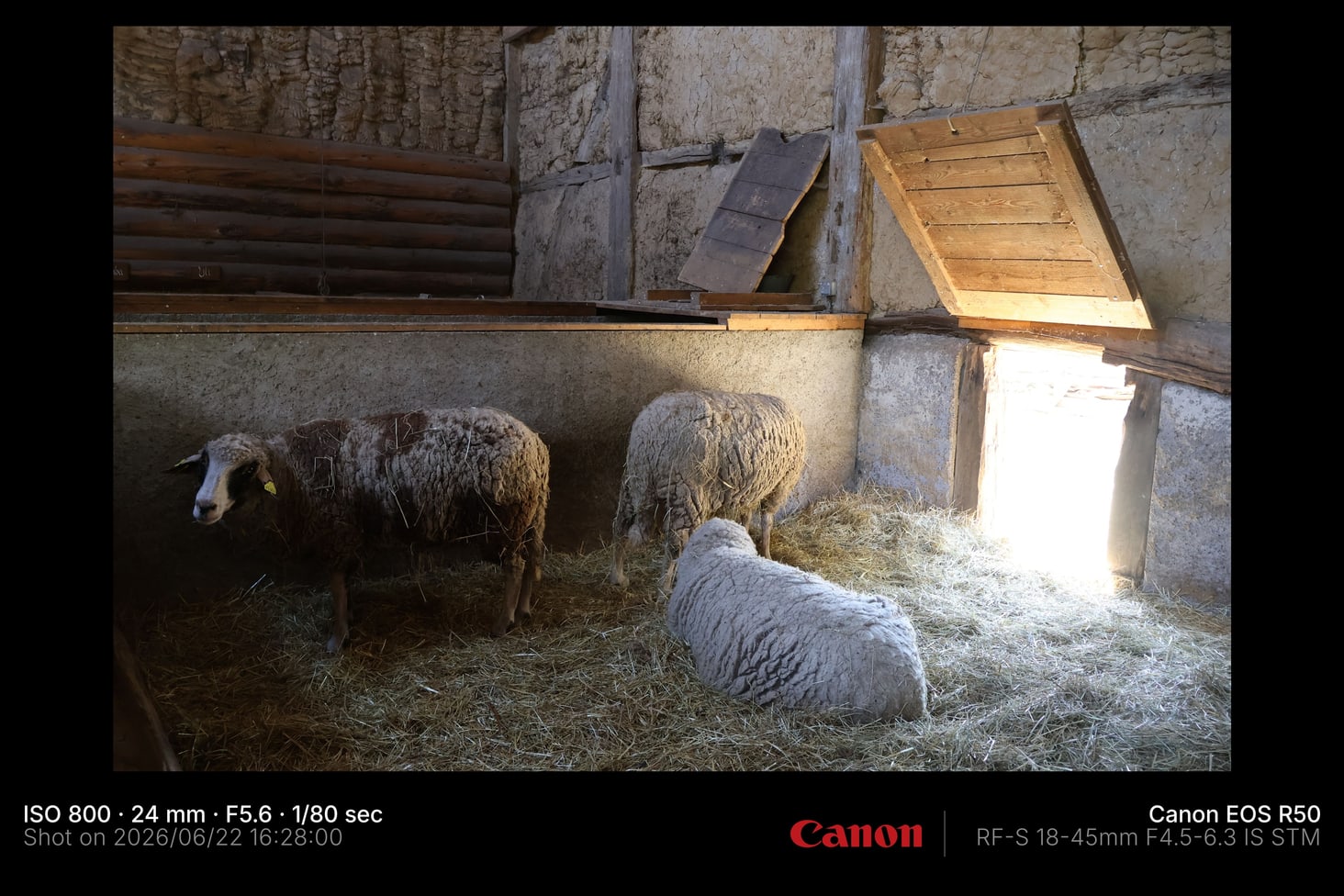
Low-key framed export for portfolio and client preview contexts.
No. Lightroom presets change photo edits. Framemodu formats exported files after the edit is finished.
Yes. It runs as an export filter, so a selected set can share one border and caption treatment.