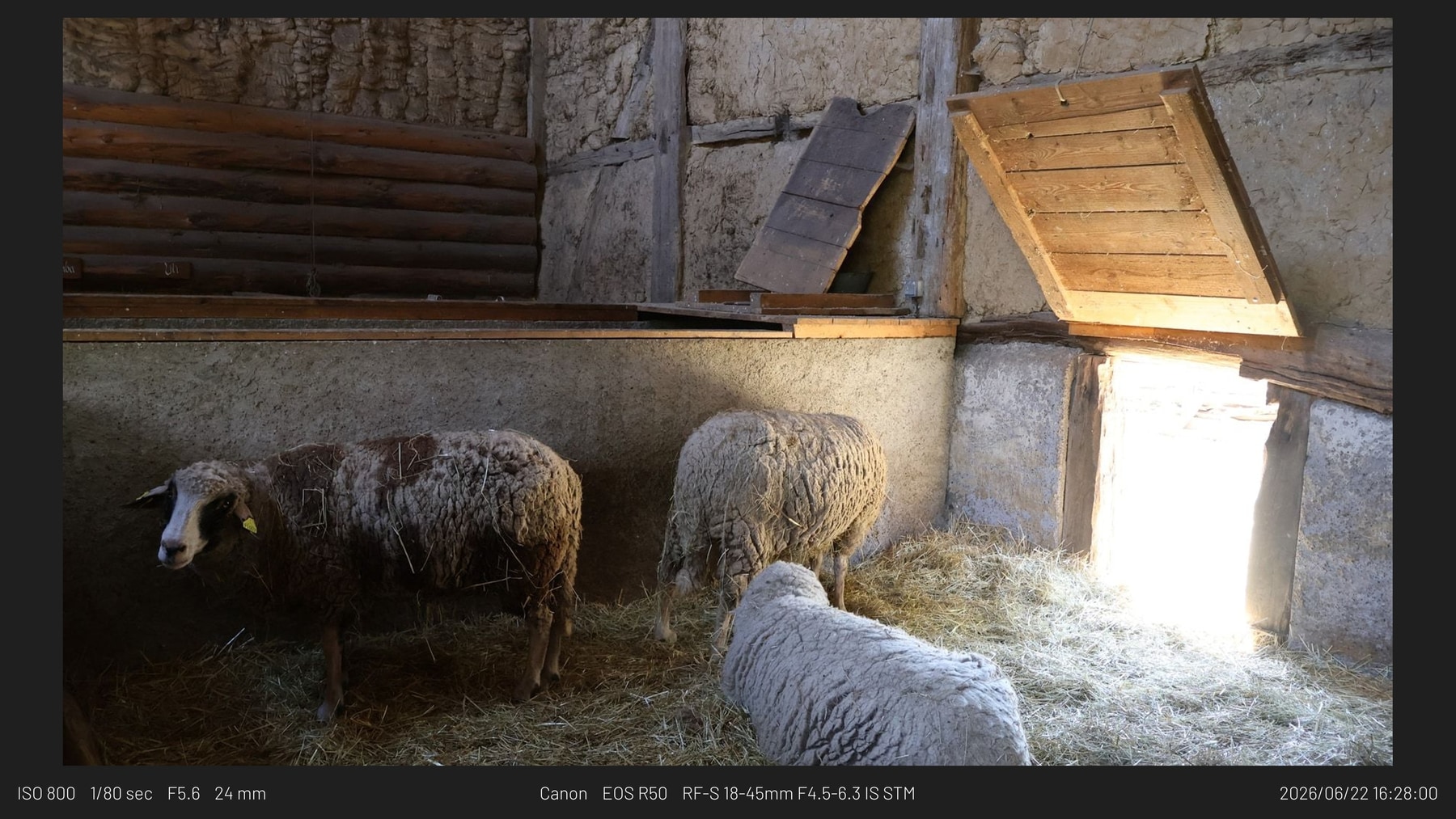
Minimal border sample
Quiet border-only output for work that should stand on the photograph.
Framemodu
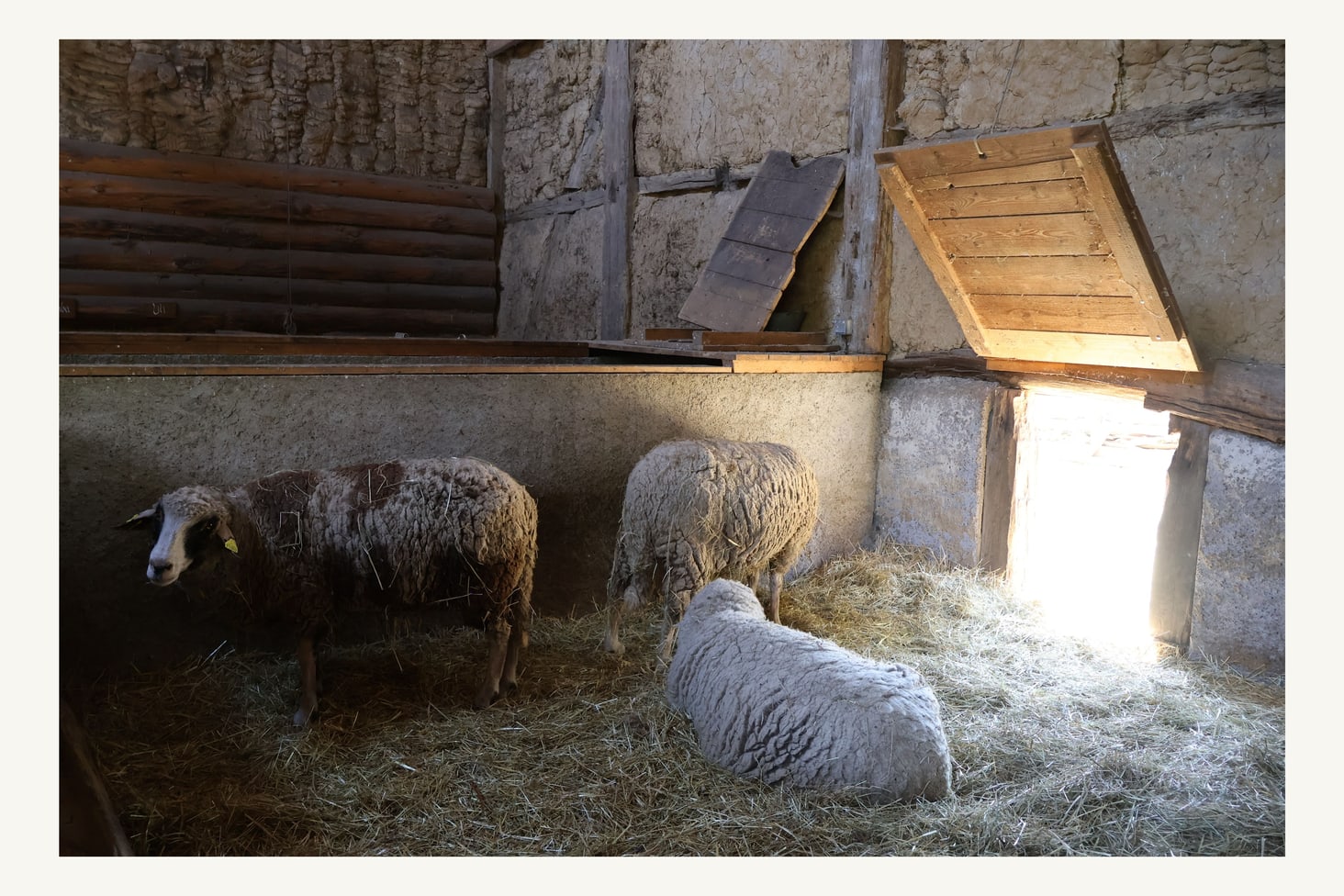
Create clean white-border Lightroom Classic exports for portfolios, client previews, social posts, and web images without opening a separate layout app.
A white border gives photographs breathing room, separates the image from busy feeds or page backgrounds, and makes mixed aspect ratios feel more consistent in a set.
Use white-border exports for portfolio updates, proofing galleries, Instagram posts, blog essays, gear samples, and any delivery where the image should feel more considered than a raw edge-to-edge JPEG.
Choose a border or info-strip template, select the destination ratio, keep EXIF and logo fields visible or hidden, and export the finished file directly from Lightroom Classic.
Export one image, inspect the outer border, compare caption size on mobile, check final dimensions, then save a Lightroom export preset before batching a full set.
Download static JPG examples to inspect frame density, caption placement, ratio, and logo treatment before testing your own Lightroom export.
Quiet border-only output for work that should stand on the photograph.
4:5 framed export with visible capture details and brand mark.
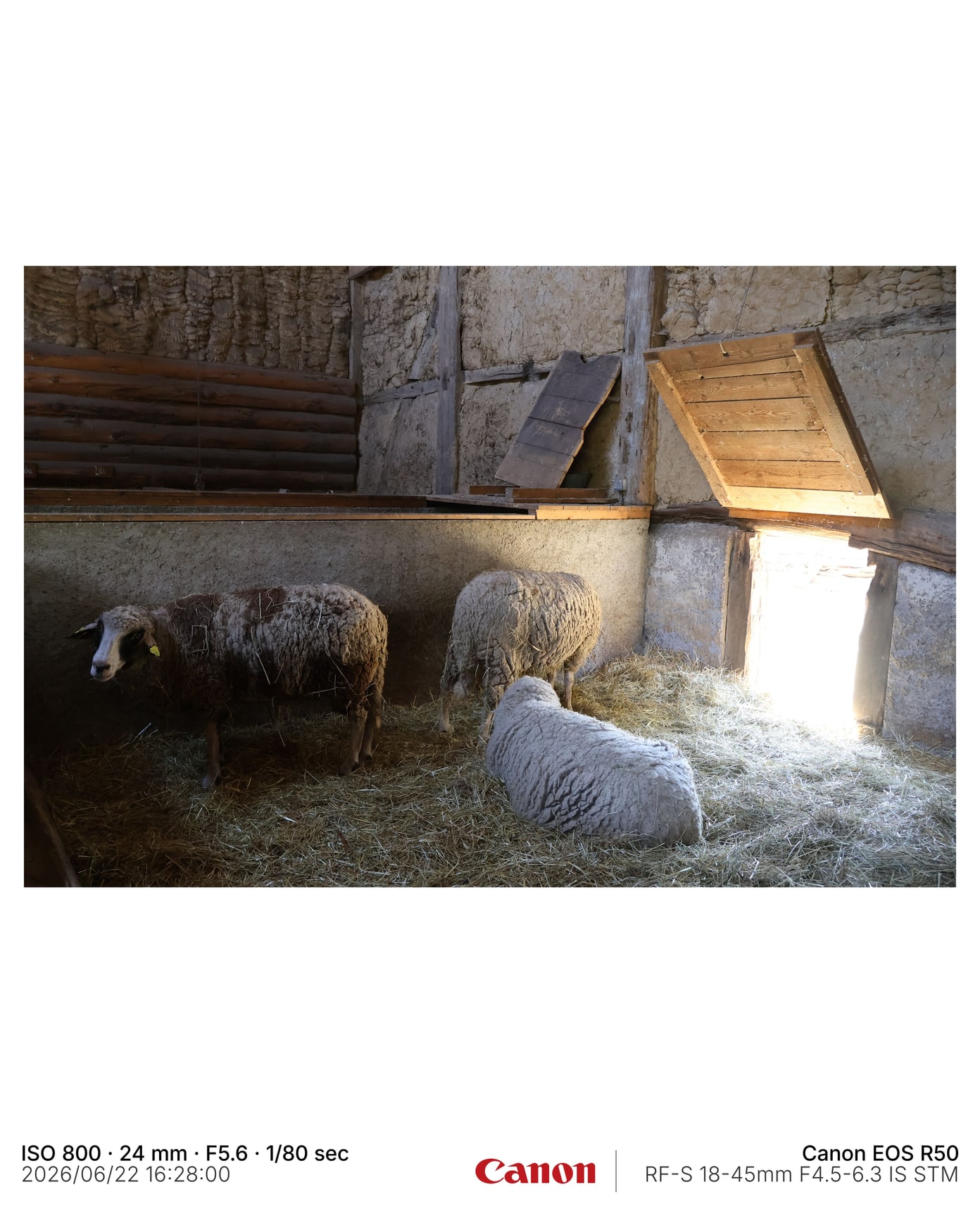
A simple finished frame treatment for side-by-side inspection.