Instagram 4:5 Info Strip sample
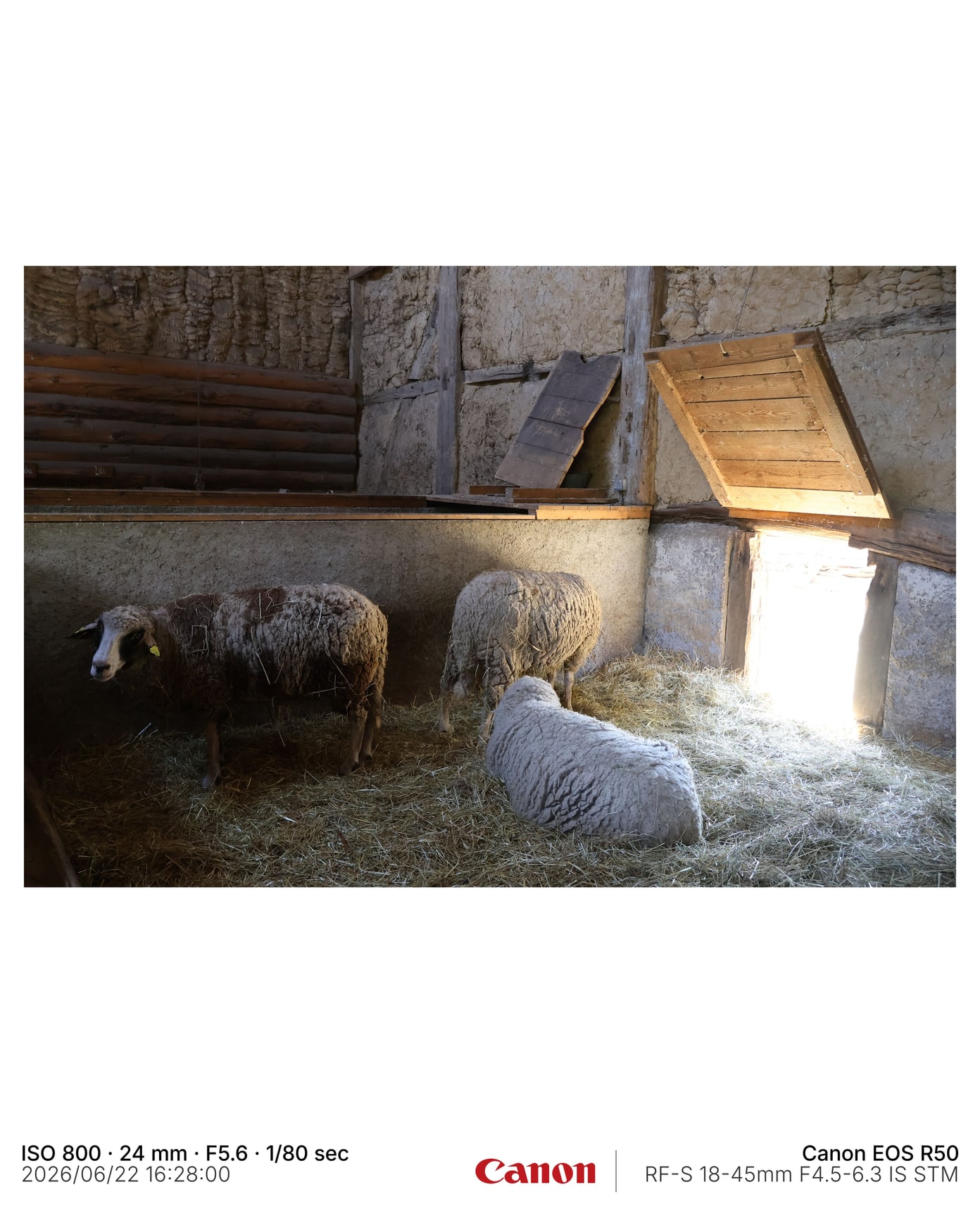
A vertical export with EXIF text and brand mark placement.
Framemodu
Export Instagram-ready framed photos from Lightroom Classic with 4:5, square, and wide presentation options, EXIF captions, and optional camera or custom logos.
Instagram feeds, profiles, and carousels mix aspect ratios and backgrounds. A consistent frame can make a set feel intentional while protecting the crop and giving captions or camera notes a stable place.
Start with 4:5 for vertical feed presence, square for grid consistency, and 16:9 when the photograph needs a wider cinematic presentation. Use the same Lightroom edit and let the export finish change by destination.
Use visible EXIF for gear, review, or educational posts. Hide metadata for editorial or portfolio posts. Use manual or custom logo modes only when the brand mark helps the delivery.
Download static JPG examples to inspect frame density, caption placement, ratio, and logo treatment before testing your own Lightroom export.
A vertical export with EXIF text and brand mark placement.
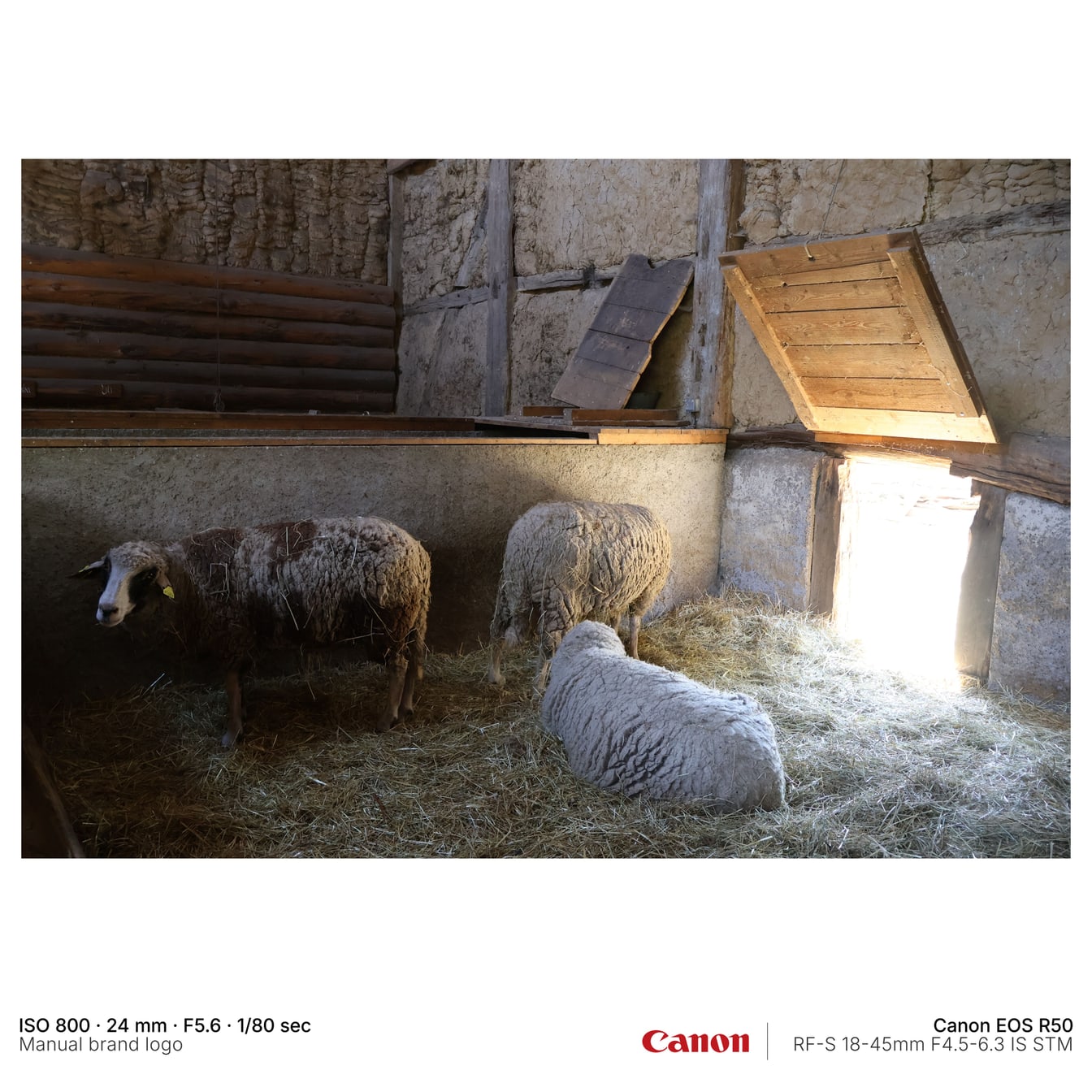
A 1:1 export using manual brand logo handling.
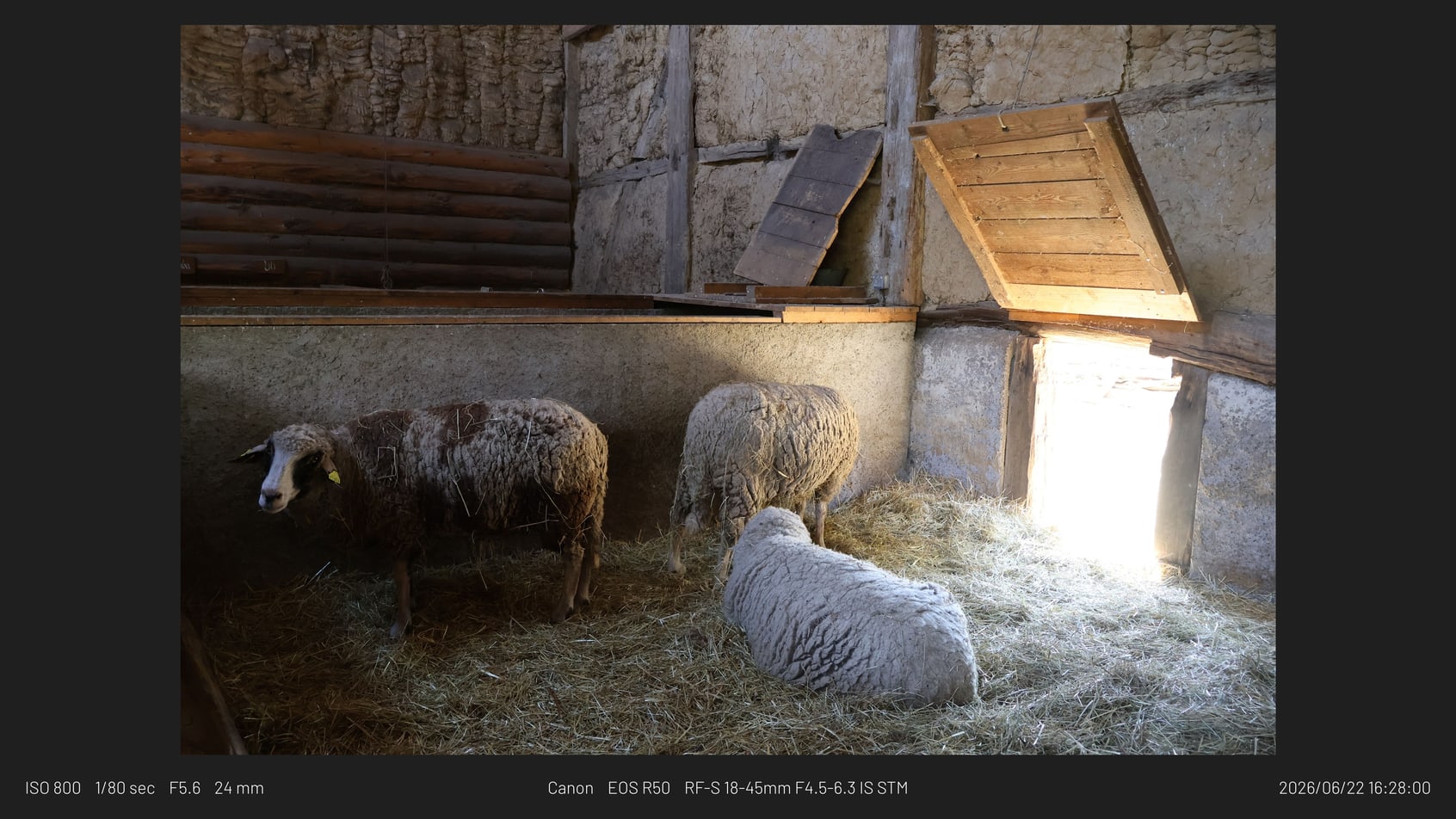
A 16:9 metadata-bar export for wide posts and web headers.
No. It creates finished export files. Posting remains outside Lightroom.
Yes. Export presets can carry different Framemodu ratio and template settings.