Framemodu
Installation
Install Framemodu with the official macOS or Windows installer, confirm it in Lightroom Classic Plug-in Manager, then run one test export before using it on a full batch.
Download the right installer
Open the Download page on the same computer that runs Lightroom Classic. Use Auto download for this device, or choose macOS Apple Silicon, macOS Intel, or Windows x64 manually if you are preparing an installer for another machine.
- Download the .pkg file for macOS or the .msi file for Windows.
- Do not download a development .lrdevplugin folder for normal use.
- The official installer includes the plug-in, renderer runtime, and native image-processing dependencies.
Run the installer
Quit Lightroom Classic before installing. On macOS, open the downloaded .pkg and follow the installer steps. On Windows, open the downloaded .msi and complete the setup for the current Windows user.
- macOS may ask for your Mac account password to complete installation.
- The Windows installer is not yet signed with a Windows publisher certificate, so Windows may show an unknown-publisher or SmartScreen prompt.
- Only continue through a security prompt when the installer was downloaded from framemodu.com.
Open Lightroom Classic
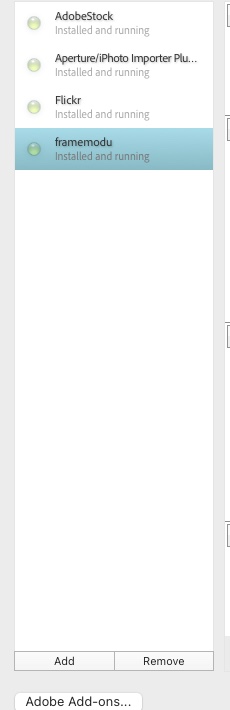
After installation, start Lightroom Classic and choose File > Plug-in Manager. Framemodu should appear automatically in the installed plug-ins list because the installer places it in the Lightroom Classic Modules location.
- Manual Add is only a recovery step if Lightroom does not detect the installed package.
- If Lightroom was open during installation, restart Lightroom Classic before checking the list.
- If Lightroom asks to update the catalog or restart, finish that host-app step first, then return to Plug-in Manager.
Confirm the plug-in status
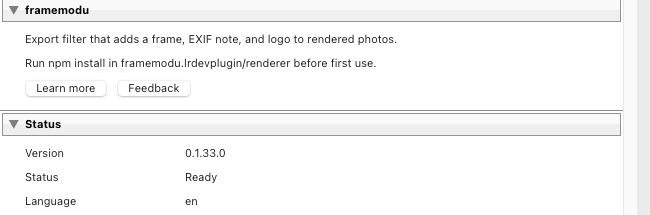
After Lightroom loads the plug-in, select Framemodu in the left list. The status panel should show Ready, and the language should match the Lightroom UI language currently in use.
- If the status is disabled, click Enable in Plug-in Manager.
- If the plug-in is listed but not ready, rerun the current installer and restart Lightroom Classic.
- If localization looks wrong, restart Lightroom Classic after changing the app language.
Check renderer and dependencies
Framemodu renders the final framed file locally after Lightroom finishes its own export. In Plug-in Manager, the Renderer, Runtime, and Dependencies rows should show that the bundled renderer is ready.
- Customers do not need to install Node.js, npm, Homebrew, Sharp, or command-line developer tools.
- If a renderer row is missing, reinstall from a fresh platform installer instead of moving files by hand.
- The renderer runs on local exported files; normal export rendering does not upload your photos.

Export one test photo
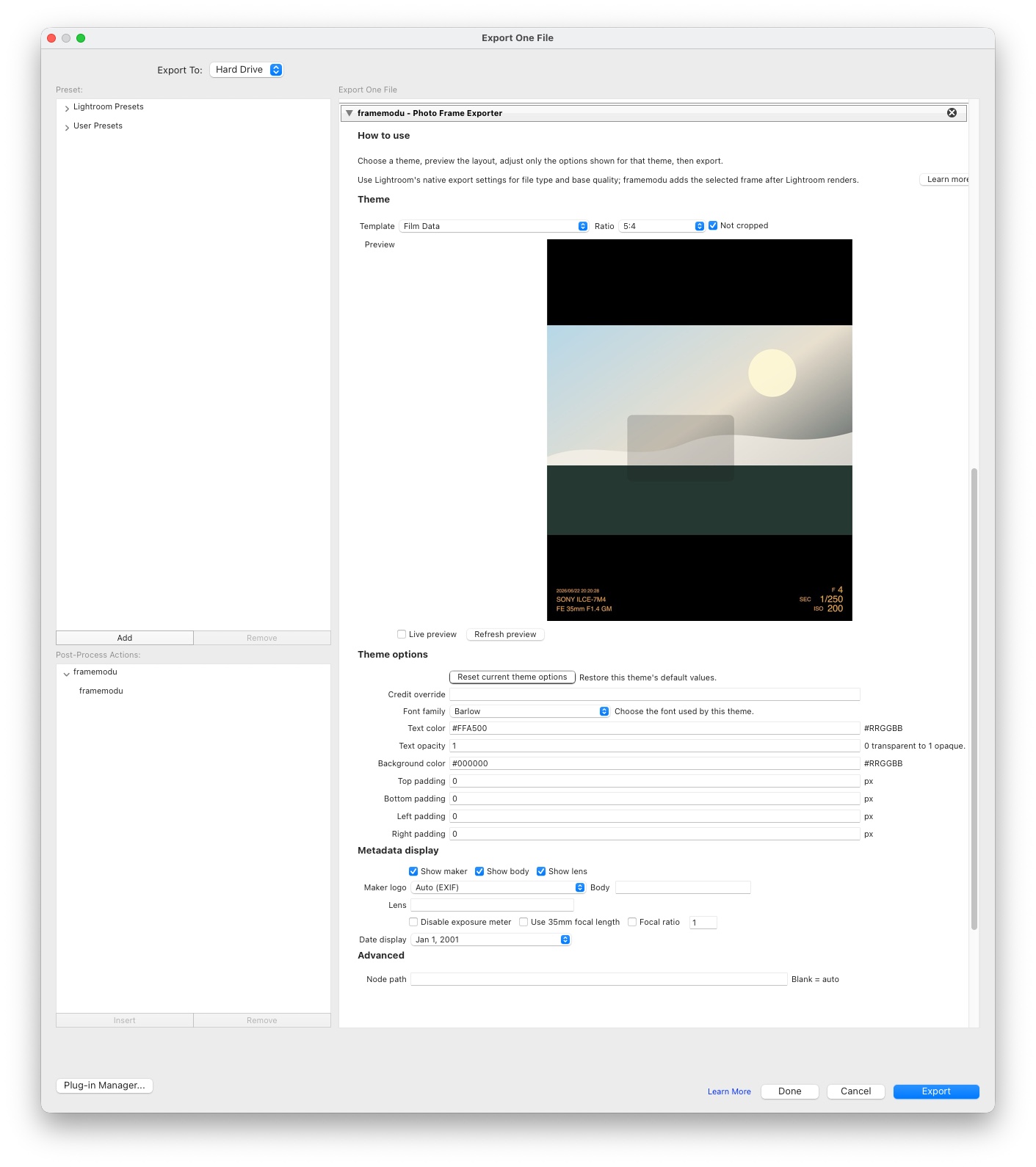
Before processing a full client set or portfolio batch, open File > Export, confirm that Framemodu appears in Post-Process Actions, pick a simple template, and export one JPEG to a test folder.
- Use one selected photo for the first test.
- Trial Mode can export the default Info Strip template before purchase.
- Keep Lightroom's native File Settings and Image Sizing choices conservative until the output looks correct.
- After the test file is correct, save the export settings as a preset for repeated work.
If Framemodu does not appear
If the export filter is missing from Post-Process Actions, return to Plug-in Manager first. The most common causes are Lightroom still running during installation, installing for a different operating-system user, duplicate older entries, or moving the installed framemodu.lrplugin folder after setup.
- Restart Lightroom Classic once after installation.
- Remove duplicate or stale Framemodu entries before rerunning the current installer.
- Keep the installed plug-in folder intact so Lightroom can keep reading the renderer runtime and dependencies.
Before a full production batch
Treat the first export as a validation file. Open the rendered JPEG, check frame alignment, output ratio, metadata text, logo mode, and destination folder before saving a preset or exporting a full client gallery. This keeps Lightroom's native export choices and Framemodu's post-process finish aligned.
- Use a small test set when changing templates or ratios.
- Compare one plain Lightroom export with one Framemodu export when diagnosing output-size questions.
- Keep the successful settings as a named Lightroom export preset for repeatable delivery.
Related topics
- install Lightroom Classic plugin
- Framemodu installation
- Lightroom Plug-in Manager
- Lightroom plugin renderer status