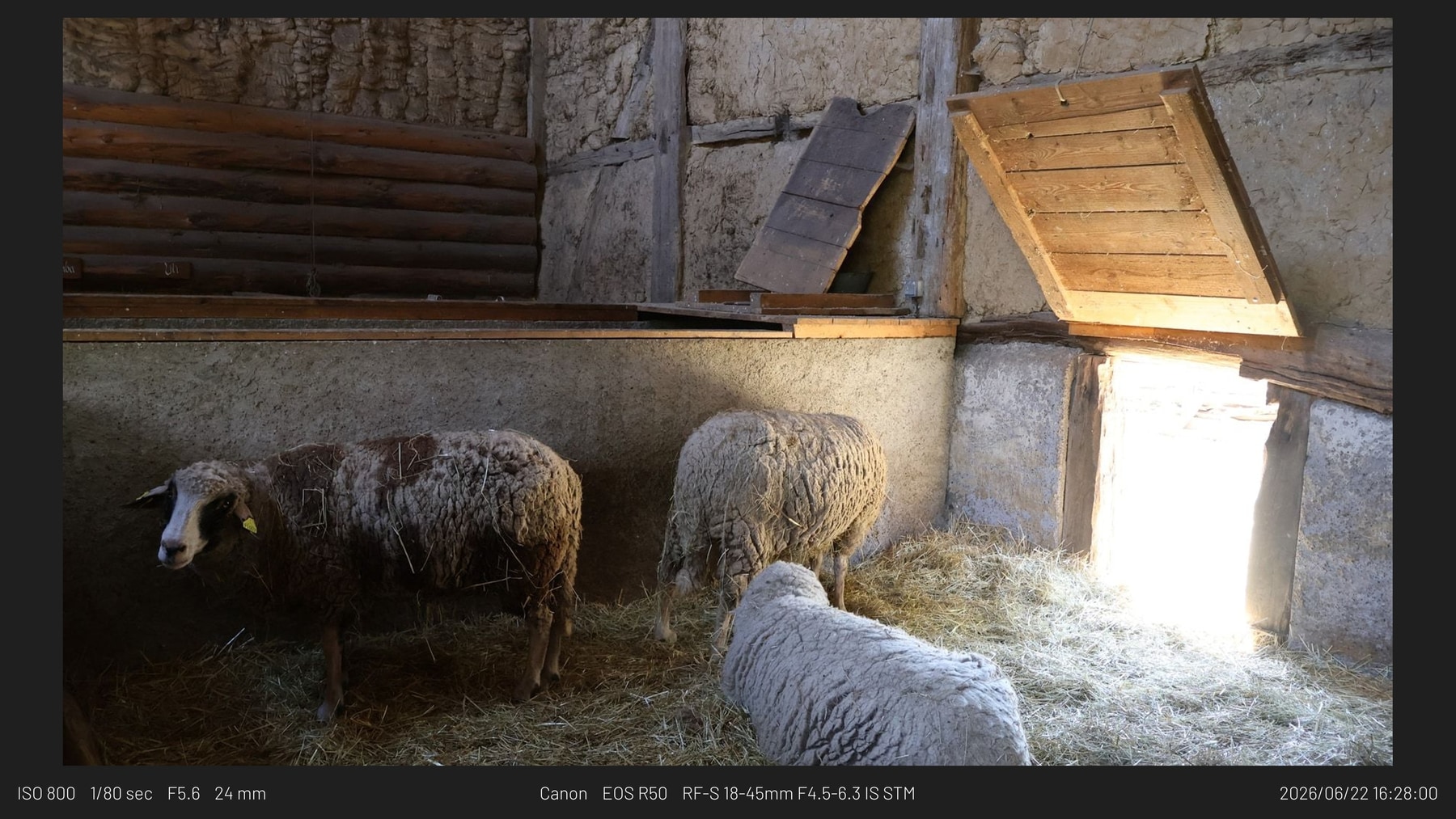
Framed 16:9 export sample
Finished file with a white presentation frame and metadata treatment.
Framemodu
Add borders, presentation frames, metadata treatments, and social-ready canvas ratios during Lightroom Classic Export instead of rebuilding layouts in a second app.
Lightroom Classic can create border-like output through Print workflows or external editor handoffs, but normal Export is still the fastest place for repeat delivery. Framemodu adds the frame, caption, logo, and canvas ratio after Lightroom writes the exported file, so the edit and catalog stay untouched.
Use an export filter when the same presentation style should apply to a batch: client previews, portfolio updates, social sets, blog images, or comparison images. One Lightroom export preset can carry the file format, destination, base sizing, and Framemodu presentation settings together.
Framemodu formats the exported copy. It can add a frame, set the final canvas ratio, print EXIF captions, place camera or custom logos, and apply a consistent theme. It does not rewrite source photos or Lightroom catalog edits.
Run one JPEG test before a full batch. Confirm the selected template, ratio, metadata text, logo mode, output size, destination folder, and visual padding. When that single file is right, save the setup as a Lightroom export preset for repeat work.
Start with Border Only for a clean print-style edge, Info Strip for a captioned delivery file, Metadata Bar for web articles and wide layouts, and Gallery Label when a set needs consistent identification. More expressive templates can be reserved for campaign or social posts.
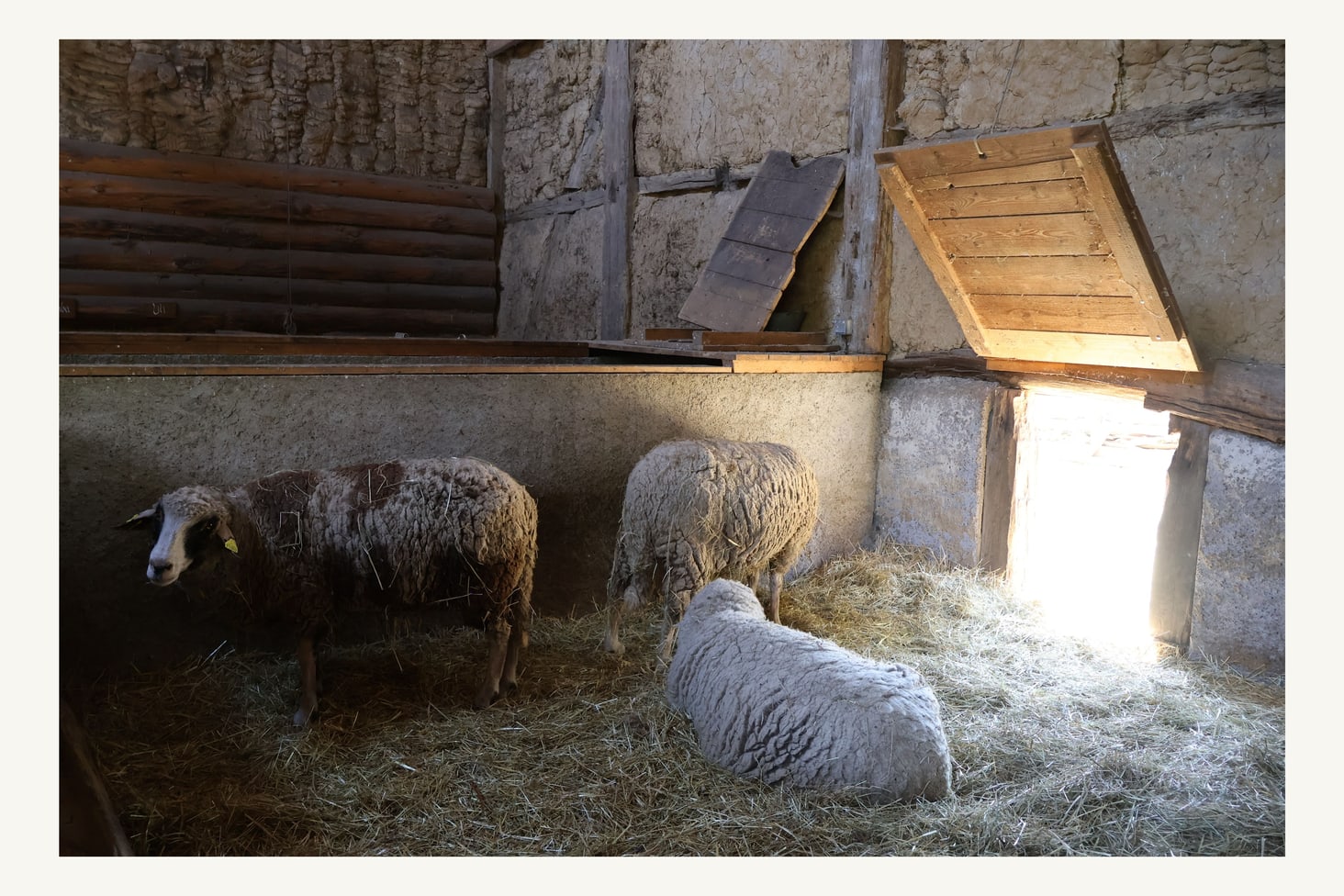
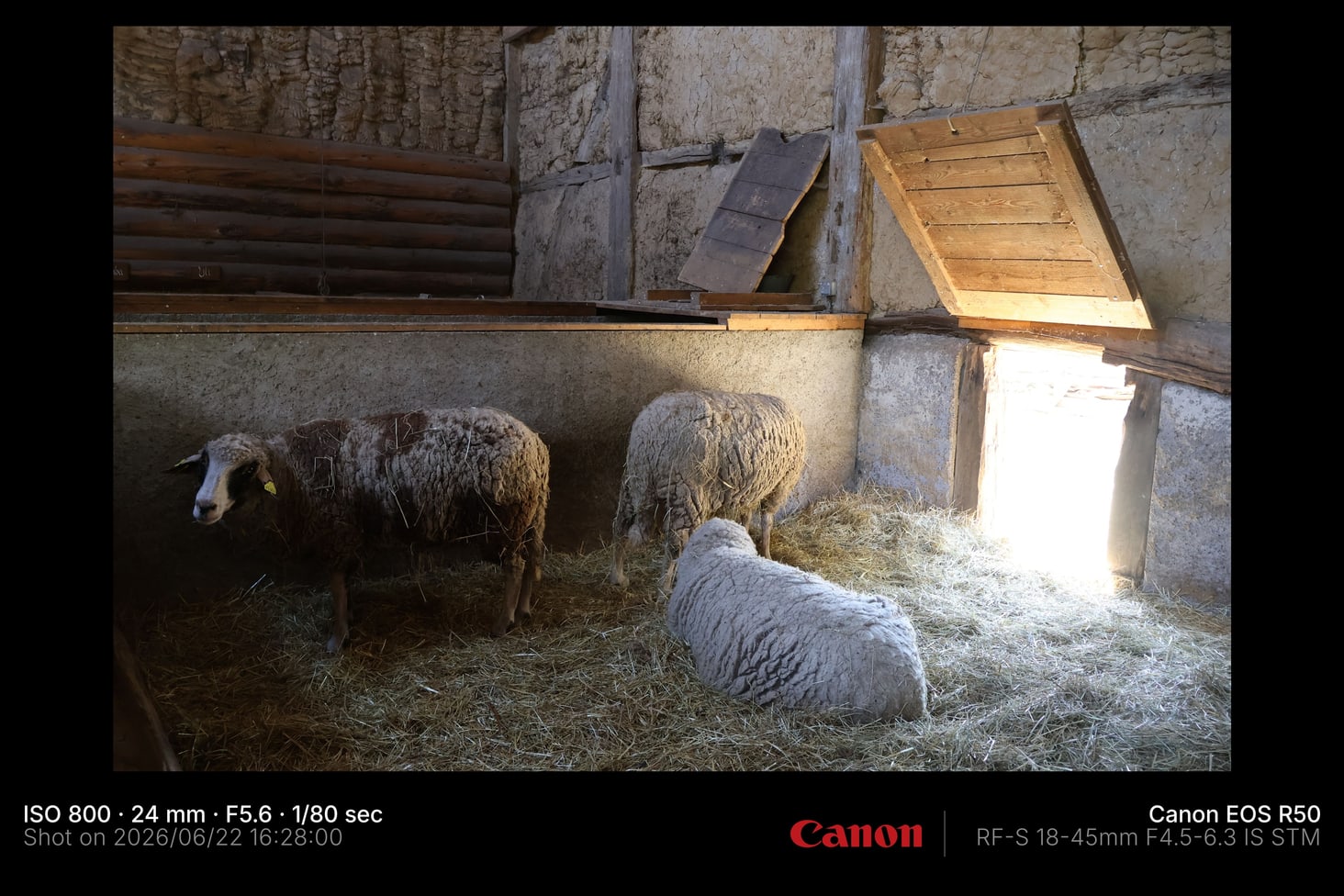
The sample JPGs below show the output style before installation. They are static examples from the current website assets, so they are useful for checking frame density, caption placement, and logo treatment before running your own Lightroom test.
Download static JPG examples to inspect frame density, caption placement, ratio, and logo treatment before testing your own Lightroom export.
Finished file with a white presentation frame and metadata treatment.
Quiet border-only output for work that should stand on the photograph.
Low-key framed export for portfolio and client preview contexts.
Yes. Framemodu runs as a Lightroom Classic export filter, so it can add borders and frame treatments during Export without opening Photoshop.
No. Lightroom exports a copy first, then Framemodu formats that exported file. Source photos and catalog edits stay unchanged.
Yes. Save the Lightroom Export settings with Framemodu enabled, then run the same finish across a selected set.
No. Develop presets change edit settings. Framemodu is a post-export presentation step for frames, captions, logos, and ratios.